
Setup for existing PRIME / EDGE customers.
This ZIP and ONYX Helper guide belongs to earlier direct ONYX packages. Current Market products are installed through MetaTrader 5; start with their Market demo guide.
WINDOWS · INSTALLATION
From ZIP to installed ONYX.
Six steps on your Windows PC or VPS. Keep this guide open on your phone if useful; the installation itself needs desktop MetaTrader 5.
Save the package. Close MT5.
Download the ZIP from your delivery email or account to your Windows PC/VPS. MetaTrader 5 must already be installed and have been opened once. Then close all MT5 windows.
Get the ONYX packageExtract the whole ZIP.
Right-click the ZIP and choose Extract all… (Alle extrahieren… on German Windows). Choose a destination, finish extraction and open the extracted folder. Opening the ZIP is not extraction.
02Extract all…
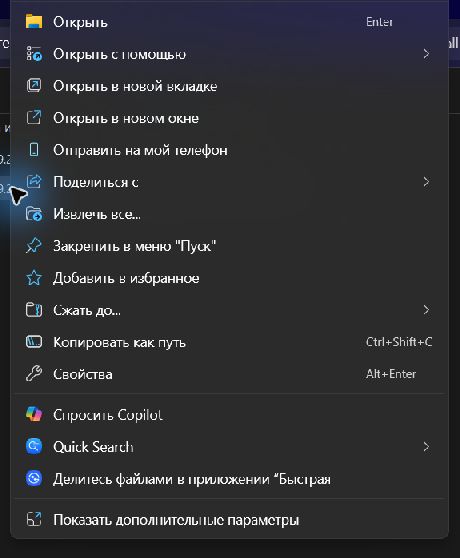 Open full-size screenshot
Windows screenshots below use a clean demonstration folder and Russian Windows labels. Your language, folder name and layout may differ. Open INSTALL_ONYX.cmd.
Inside the extracted folder, double-click INSTALL_ONYX.cmd. Windows may hide .cmd and show INSTALL_ONYX. Do not choose UNINSTALL_ONYX or VERIFY_PACKAGE for this step.
03INSTALL_ONYX.cmd
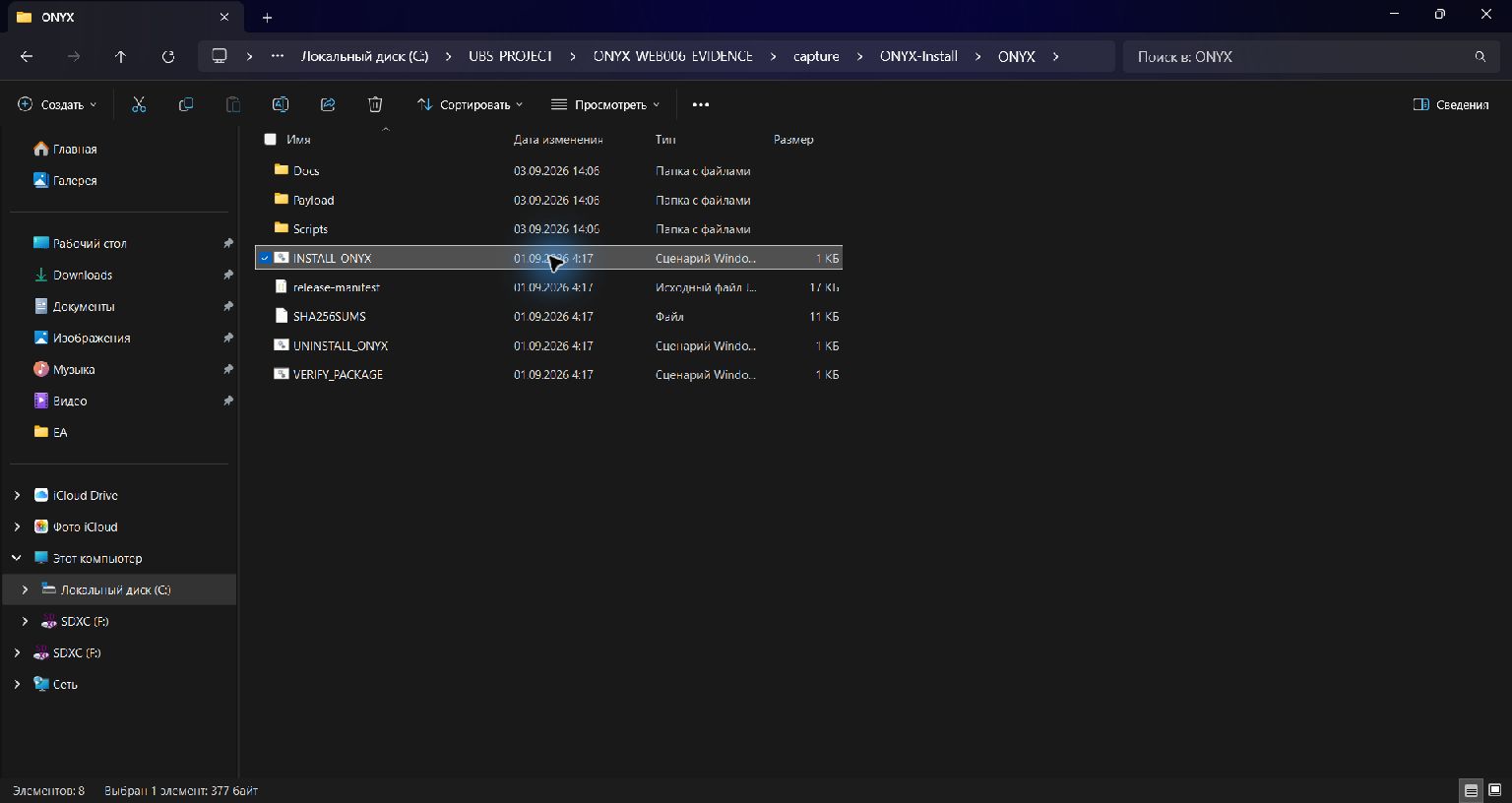 Open full-size screenshot
The fully extracted ONYX folder with INSTALL_ONYX selected. Choose the correct MT5.
Read Available MT5 Data Folders. For the terminal listed as [1], type 1 and press Enter. With just one folder, Enter alone also selects it. Select the MT5 data folder, not the program installation folder.
Worked example · the desired terminal is [1]
Select [1]1EnterInstructional example, not an installer screenshot. No installation was run for this example.Several terminals? Read every listed path and its origin. Type the number of your intended terminal — it may not be 1. If unsure, cancel; in the intended MT5 use File → Open Data Folder, note its path, then close MT5 before trying again.
No folders listed?
No folders listed? Open your desktop MT5 once and find File → Open Data Folder, then close MT5. Enter that full data-folder path when asked. The chosen folder must contain MQL5.
Check the destination. Confirm.
Check the displayed MT5 Data Folder and Common Files destinations. At Type 1 to install, or anything else to cancel, type 1 and press Enter only if the destination is correct. Any other answer cancels.
Confirm the checked destination
Type 1 to install, or anything else to cancel1EnterInstructional example, not an installer screenshot. No installation was run for this example.Look for the success message.
Installation is complete only when the exact success line below appears without an error. ERROR or the failure line means stop and read the error. Do not assume that a closed window means success.
Success — exact installer text
ONYX installation completed successfully.Failure — do not continue
ONYX installation was not completed. Read the error above.
Installed does not mean trading.
After installation, open MT5 and refresh Navigator → Expert Advisors. In your account, create a short-lived activation file for the local ONYX Helper. Follow the activation instructions and attach the EA manually on a demo chart. Permanent technical keys are not sent by email or shown in the browser.
Seeing ONYX_PRIME in Navigator only confirms that MT5 sees the EX5 file. It does not mean PRIME is attached to a chart or ready to trade. On a demo chart, check that the PRIME panel appears and its SET library is visible. If the panel, SET list or START control is missing, stop and send support a screenshot of the panel and the Experts tab with personal data hidden. Do not enable START or AutoTrading on an account you have not checked.
Your 30-day trial begins with the first successful activation of ONYX PRIME or EDGE, not when this email arrives. Installation does not activate a license or start trading.
Open your accountIf something stops
Still inside the ZIP?
Close that window and extract the entire ZIP. Run INSTALL_ONYX.cmd only from the resulting folder.
MT5 is open?
Close all MetaTrader 5 terminals, then open INSTALL_ONYX.cmd again. Do not force installation into a running terminal.
Red error or Windows security block?
Stop. Keep the error text and contact support. Do not disable Defender or Smart App Control. Extraction is not a fix for every security block.
Compare before choosing a product.
Four ONYX products are listed individually on MQL5 Market. Check each current version, requirements, price and demo there.
Trading can lead to losses. Setup and ongoing monitoring still matter.